Layout styles · Updated 7 October 2026
Honeycomb: turn your photo collection into a mosaic
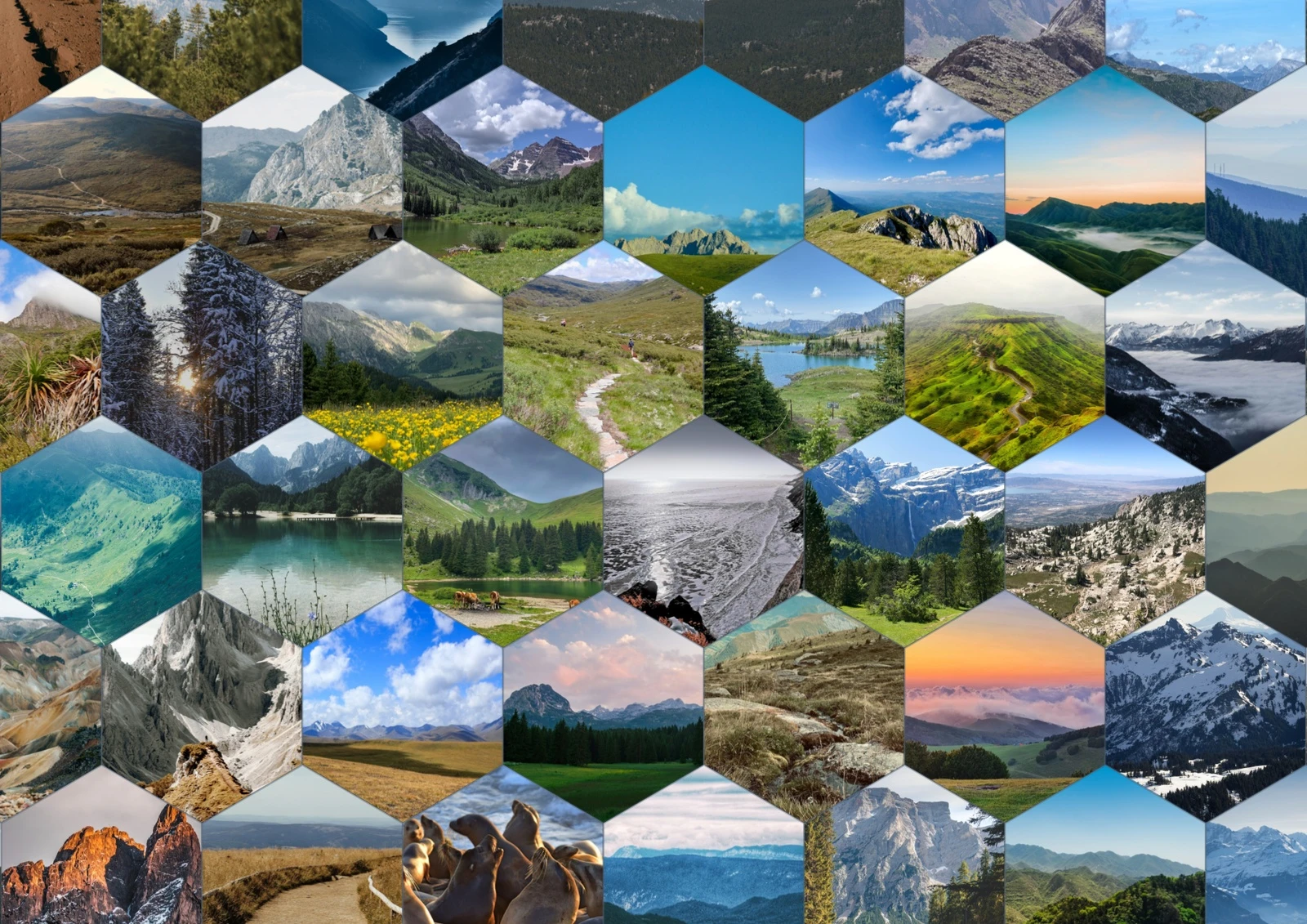
Joined hexagons turn separate views into a patchwork of water, sky and mountains. Honeycomb makes a first impression as a whole, then invites a closer look at each photograph.

Separate photographs, connected edges
Honeycomb arranges hexagonal frames in staggered rows. With a small or zero gap, neighbouring pictures read as a connected mosaic. It works well when shared colours and textures matter: a travel collection, outdoor club display or a page intended to reward both distant and close viewing.
This example requested 30 mm hexagons and 0 mm horizontal and vertical spacing on an A3 landscape canvas, 420 × 297 mm. All 100 photographs appear exactly once. A stepped perimeter is part of this design. Leave it visible, or choose an arrangement with straighter outer edges when that better suits the page.
Each hexagon here contains a different photograph. A skyline can meet the next image at a joined edge, while corners of the source photo disappear into the shape. Compare these boundaries with the separate circles in Sunflower Spiral.
Choose Honeycomb and inspect the preview
On desktop, follow Upload Photos, Pages, Styles, Customize and Review in the Photo Collections wizard. Add your photos, set the page count and choose Honeycomb. The Pages picker provides A4, US Letter, A3 and A5 with portrait or landscape orientation; choose A3 landscape for the example’s canvas.
Review shape, spacing and framing choices in Customize, then generate a preview. Vectrari® Vision can help frame detected subjects and faces, but a person at an edge or a small subject in a wide scene still needs your attention. Automatic assignment may place photographs in a different order.
Phone follows Upload, Pages, Style and Preview, using automatic assignment. Inspect the result before creating the collection. Use desktop when you want manual photo assignment and fuller editing controls.
Match the export to your intended use
The source images in this example are 1080-pixel-wide derivatives. More output pixels cannot restore source detail, so check the finished file at your intended size and proof a physical print before relying on it.
Pro adds SVG, JPEG and TIFF, higher-resolution options and CMYK controls where supported by the format. Choose what your printer or workflow requires. For another way to show this same collection, compare all four 100-photo arrangements.
About these examples and photo sources
Stickerloom’s production analysis, planner, framing and export libraries generated this artwork. These images show actual exports, not a wizard demonstration or proof of physical printer alignment.
The photo credits and licence record lists the 100 original stock-photo source URLs and licence links.