Practical templates · 7 October 2026
An Avery sheet doesn’t have to be all the same
Three copies of one address. Four of another. Five of a third. A fixed label grid can hold a useful mix without turning every position into the same design.

Keep the template. Change what goes into it.
Our examples use the supported Australian AVERY® L7160 preset: an A4 page with 21 positions in three columns and seven rows. Each label is 63.5 × 38.1 mm. The positions belong to the sheet; the text belongs to your design.
Keeping those two things separate is useful for a small mailing run, event pack or set of name labels. You can place different content in different positions while retaining the preset’s page and slot geometry. Don’t rearrange the grid to make an empty area look smaller: the physical labels will still be in their original positions.
Choose the code printed on your actual stock, not a template that merely looks similar. Stickerloom’s licensed AVERY® presets cover its supplied Australian catalogue and are for AVERY®-branded stock only. For other stock, create a custom layout using that product’s dimensions instead.
Twelve labels, three small jobs
In the first example, positions 1–3 hold John Doe, 4–7 hold Sarah Smith, and 8–12 hold Hank Thomas. That gives us exactly 3, 4 and 5 copies, with nine positions left white. All names and addresses are fictional.
A useful review is simple: count each group, check the actual address lines, and inspect the last label in each group. Repeated text makes a missing line or an accidental extra copy surprisingly easy to overlook.
This is an arranged example, not a claim of automatic mail merge or address validation. Your content still needs checking. The colour-group cues used in our social illustration are not part of this clean print file.

Only three positions need content? Leave the rest blank.
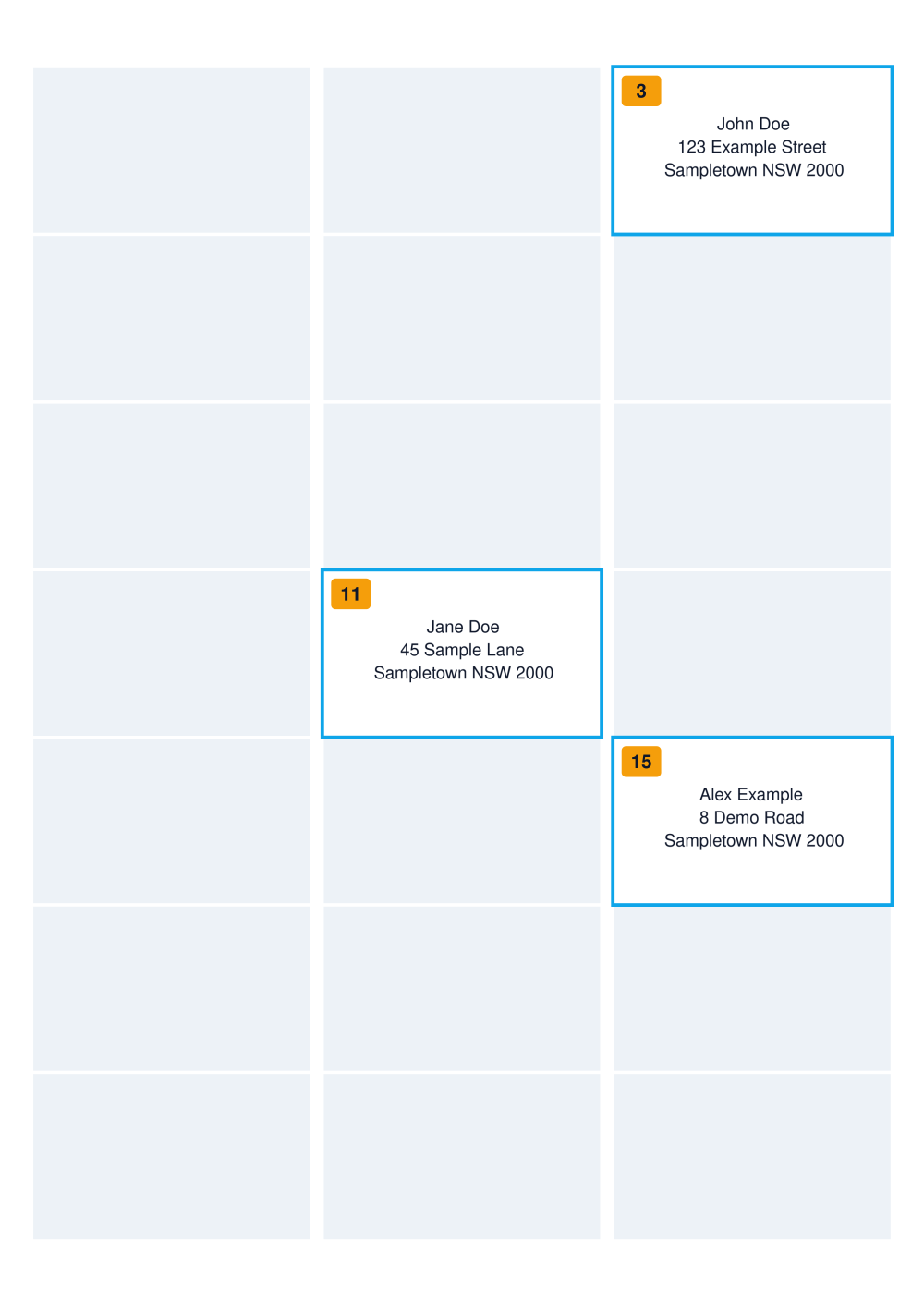
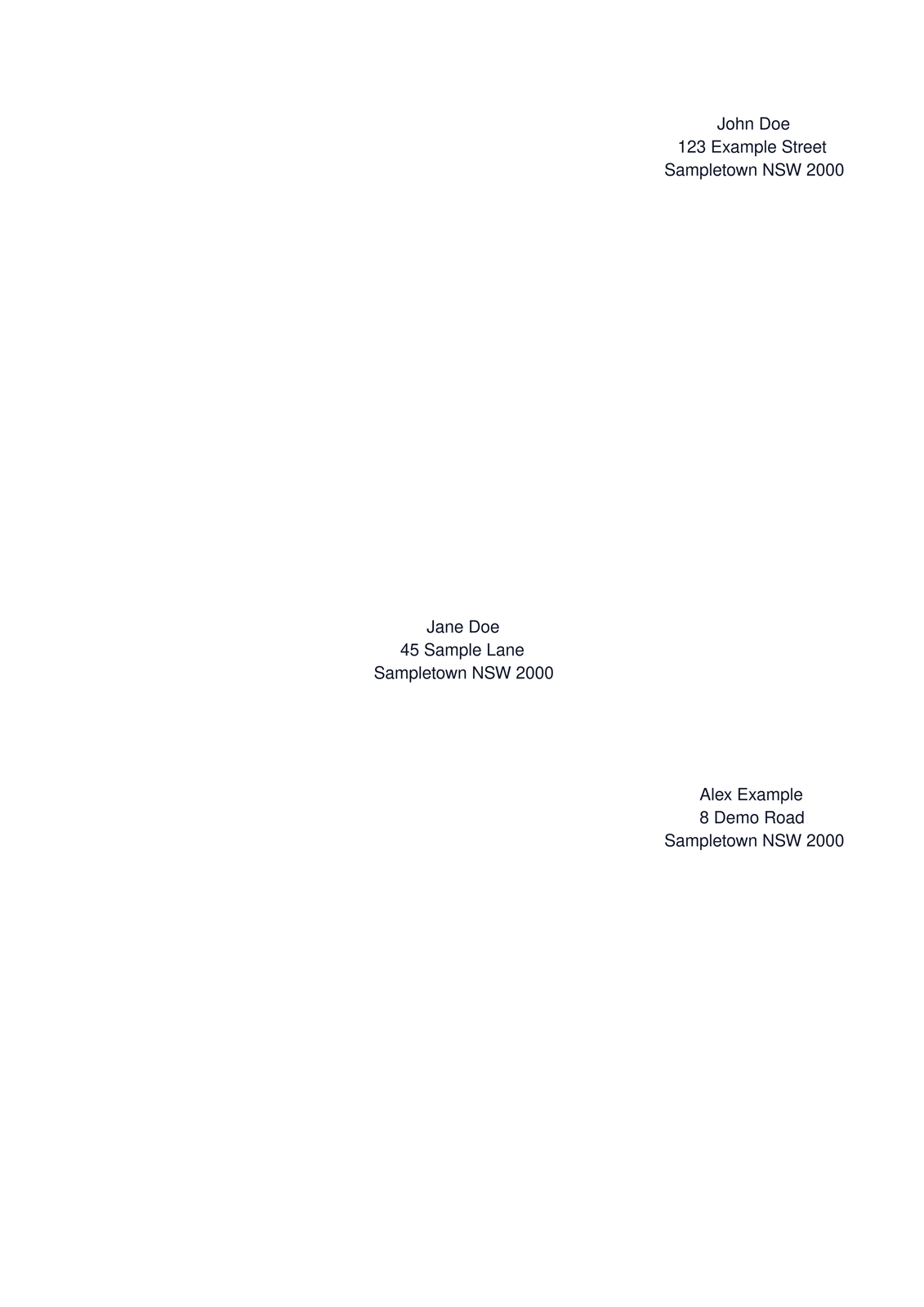
The second example places fictional addresses in positions 3, 11 and 15. The other 18 positions contain no printed design. They stay at the same size and coordinates; we have not collapsed the page around the three addresses.
The position map below adds grey cues so the three selected locations are easier to see. Those cues are an illustration only: they are not a record of used labels, and Stickerloom has not scanned a physical sheet.
Check your stock and printer before printing
Use a fresh sheet suitable for your printer. Avery advises against printing multiple times on the same label sheet, because repeated passes can affect the adhesive and cause feeding problems. An empty area in an exported layout does not make a previously printed or partly peeled sheet safe to use again.
Before using label stock, make a plain-paper proof. Check A4 page size, feed direction and alignment against the stock. Avery’s Australian printing guidance recommends that first-paper check and reviewing the print-size setting. Disable unwanted scaling rather than assuming “fit to page” will retain the label coordinates.
Our example files are one-page A4 exports with white paper and no decorative cut lines, crop marks or grey slot shading. Their screen geometry has been checked, but they are not a physical printer calibration or a guarantee of alignment on every device.
For more layout-side checks, read the spacing guide, then follow your stock and printer manufacturers’ printing instructions.
About these examples and photo sources
These pages were generated with Stickerloom’s actual L7160 template, fixed-grid calculation and PNG/PDF/SVG exporter. All 21 positions were retained. The selected positions and 3/4/5 text counts were checked against the exported files; the unfilled positions were checked as white.
No customer data appears here. Avery names and product codes identify matching stock; these examples do not imply Avery endorsement.